Backend Getting Started: Sign-in, Organizations, Navigation
The fastest path from first sign-in to meaningful work inside an organization workspace
Ask AI about this page
Get answers grounded in the live Obelisk docs set, with source links, selected-text explainers, and prompts for the next document to read.
This guide is the fastest path from first sign-in to meaningful work inside an organization workspace.
What Success Looks Like
By the end of this guide, you should be able to:
- enter the right organization workspace
- understand the difference between personal, organization, and admin navigation
- know where to go next for onboarding, billing, integrations, and runtime operations
1. Sign In
Go to /auth/sign-in and sign in with your account credentials.
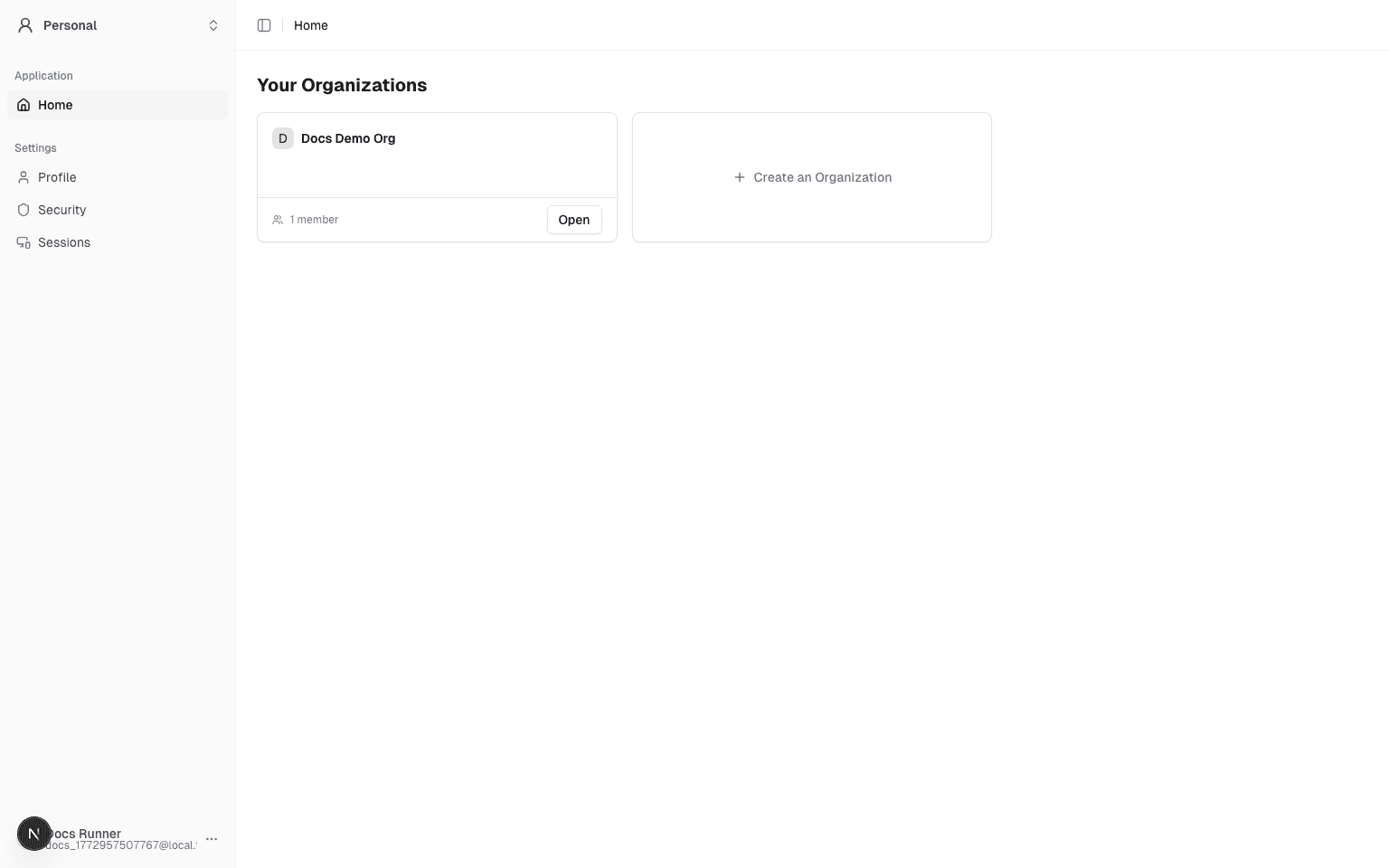
After a successful login, you will land on /dashboard (personal home), where organization cards are listed.
2. Enter an Organization Workspace
In Your Organizations, click the target organization card (Open is shown at the bottom-right of each card).
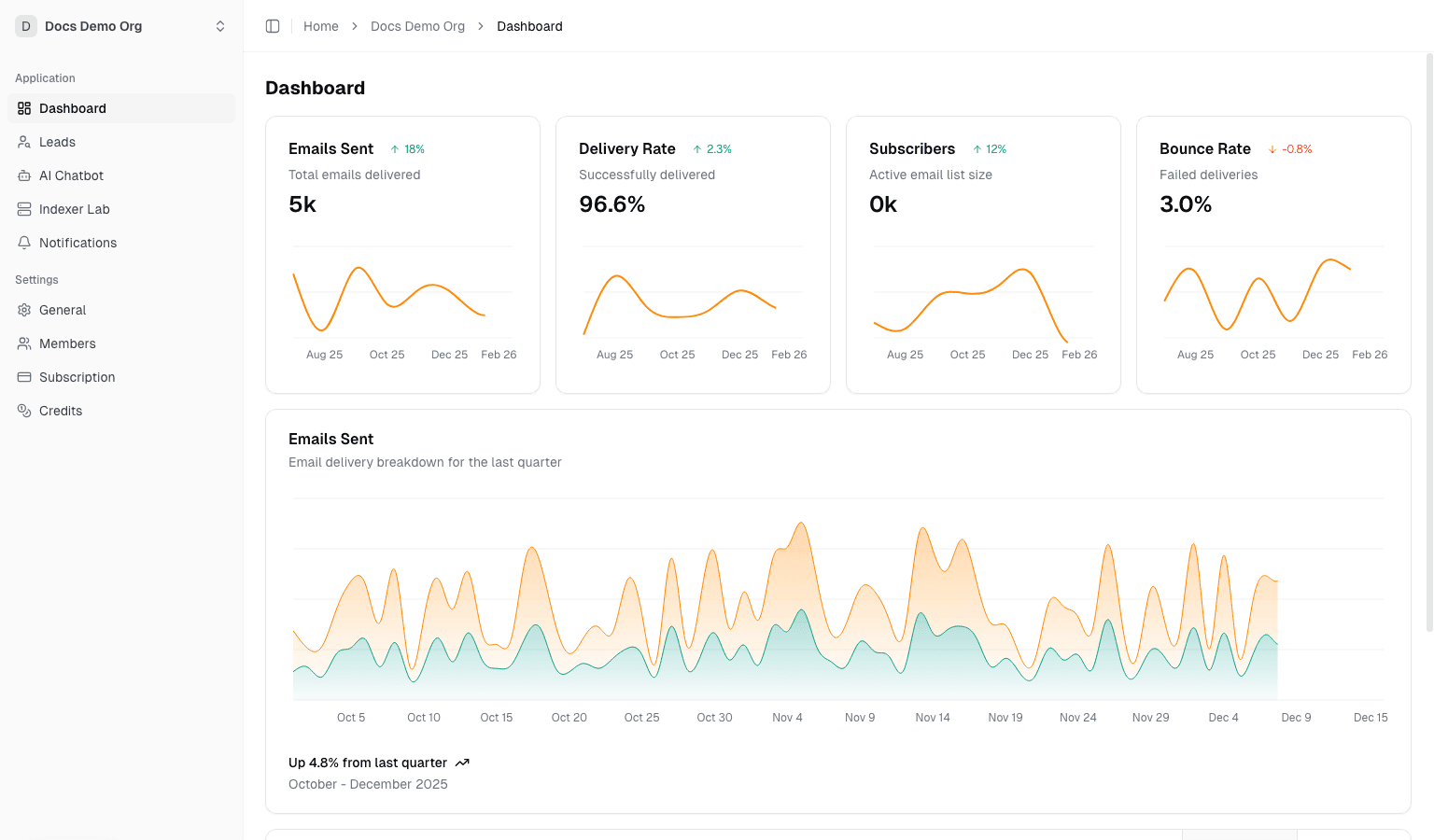
The system sets it as your active organization and redirects to /dashboard/organization.
3. Complete A 5-Minute Orientation
Once you are inside /dashboard/organization, use this short path:
- open
Dashboardto understand workspace health and recent operational activity - open
Integrationsto verify API, webhook, and runtime surfaces - open
Settingsto confirm membership, roles, and billing posture - open either
Contract Lab,Indexer Lab, orChannel Labdepending on the workflow you own - open
Activity,Analytics, orAudit Logif you need operational context before making changes
4. Navigation Structure
Home: personal dashboard, mainly used for organization selection and account-level pagesOrganization: organization-scoped features such as dashboard, analytics, leads, chatbot, activity, notifications, contract lab, indexer lab, channel lab, integrations, settings, and supportAdmin: platform admin area for users, organizations, notifications, app config, and platform alerts
5. Authentication and Onboarding Routes
Key routes after first visit:
/auth/sign-up/auth/sign-in/auth/verify(TOTP)/auth/forgot-password/auth/reset-password/dashboard/onboarding/dashboard/choose-plan/dashboard/organization-invitation/[invitationId]
Detailed flow guide:
- Authentication and Onboarding: Sign-up, Sign-in, Verify, Reset, Plan Gate
- Account Center: Settings, Activity, Preferences
6. Common Issues
Clicking an organization card still stays on /dashboard
Usually this means the active organization was not written into session correctly. Refresh and click again. If it still fails, check:
- Whether your account is a member of that organization
- Whether browser cookies are blocked for this site
- Whether onboarding finished and session state has refreshed
Why some pages redirect to sign-in
Your session is expired or missing. Sign in again, then revisit the route.