Contract Lab Tutorial: Revisions, AI Rewrite, Validate, Deploy
Step-by-step guide for using Contract Lab from project creation to deployment
Ask AI about this page
Get answers grounded in the live Obelisk docs set, with source links, selected-text explainers, and prompts for the next document to read.
Route: /dashboard/organization/contract-lab
This tutorial walks through the complete daily workflow in Contract Lab:
- Create a project
- Edit draft files
- Save and compare revisions
- Use AI generation and rewrite
- Validate and queue deployment
1. Open Contract Lab
From an active organization workspace, go to Contract Lab in the sidebar.
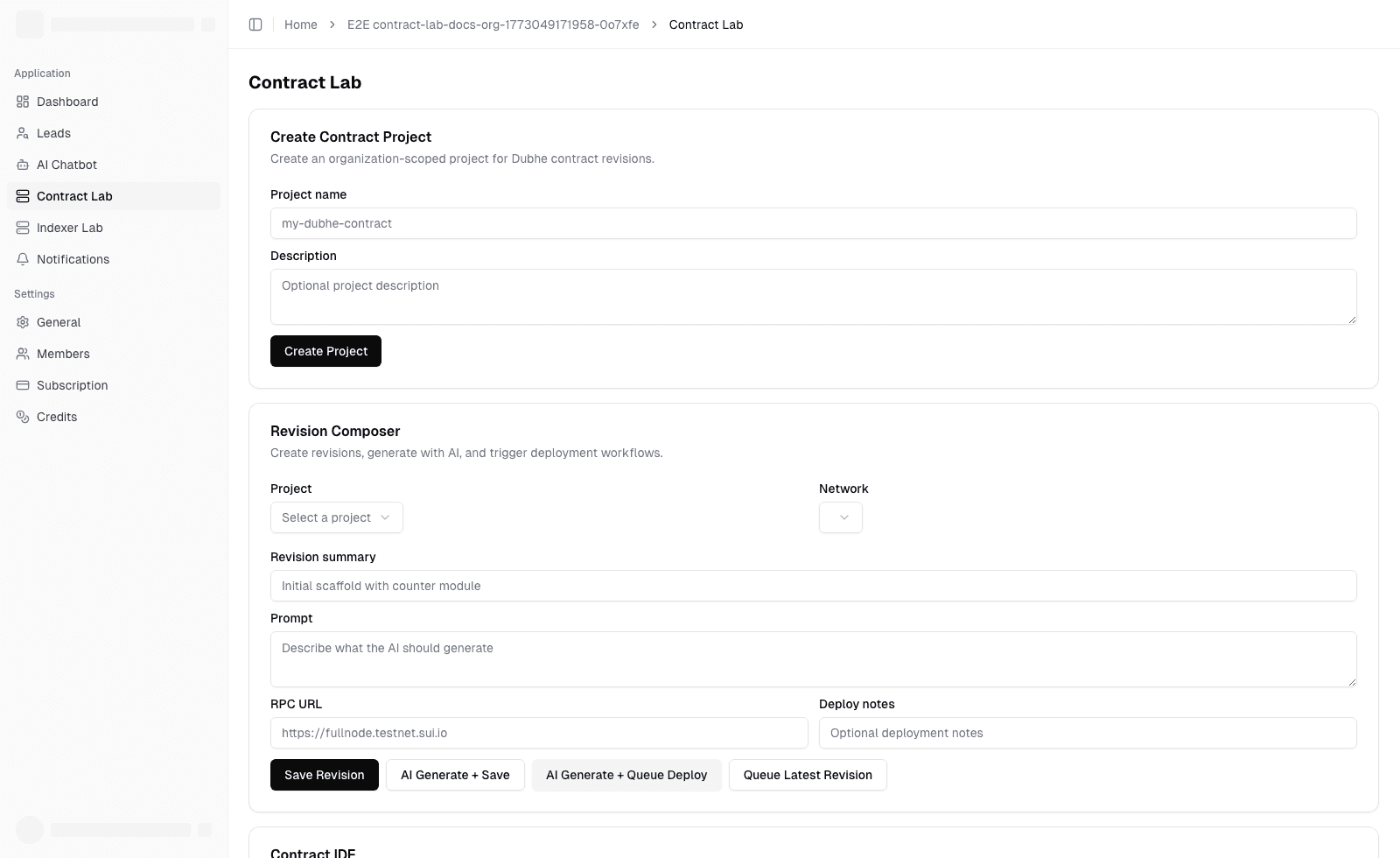
You should see:
Create Contract ProjectRevision ComposerContract IDERevision History And DiffDeployments
2. Create a Contract Project
In Create Contract Project:
- Fill
Project name(required) - Optionally fill
Description - Click
Create Project
After creation:
- The project is automatically selected in
Revision Composer. - Contract Lab auto-creates the first revision from the default Dubhe template
(based on the
101stack scaffold).
3. Compose and Save a Revision
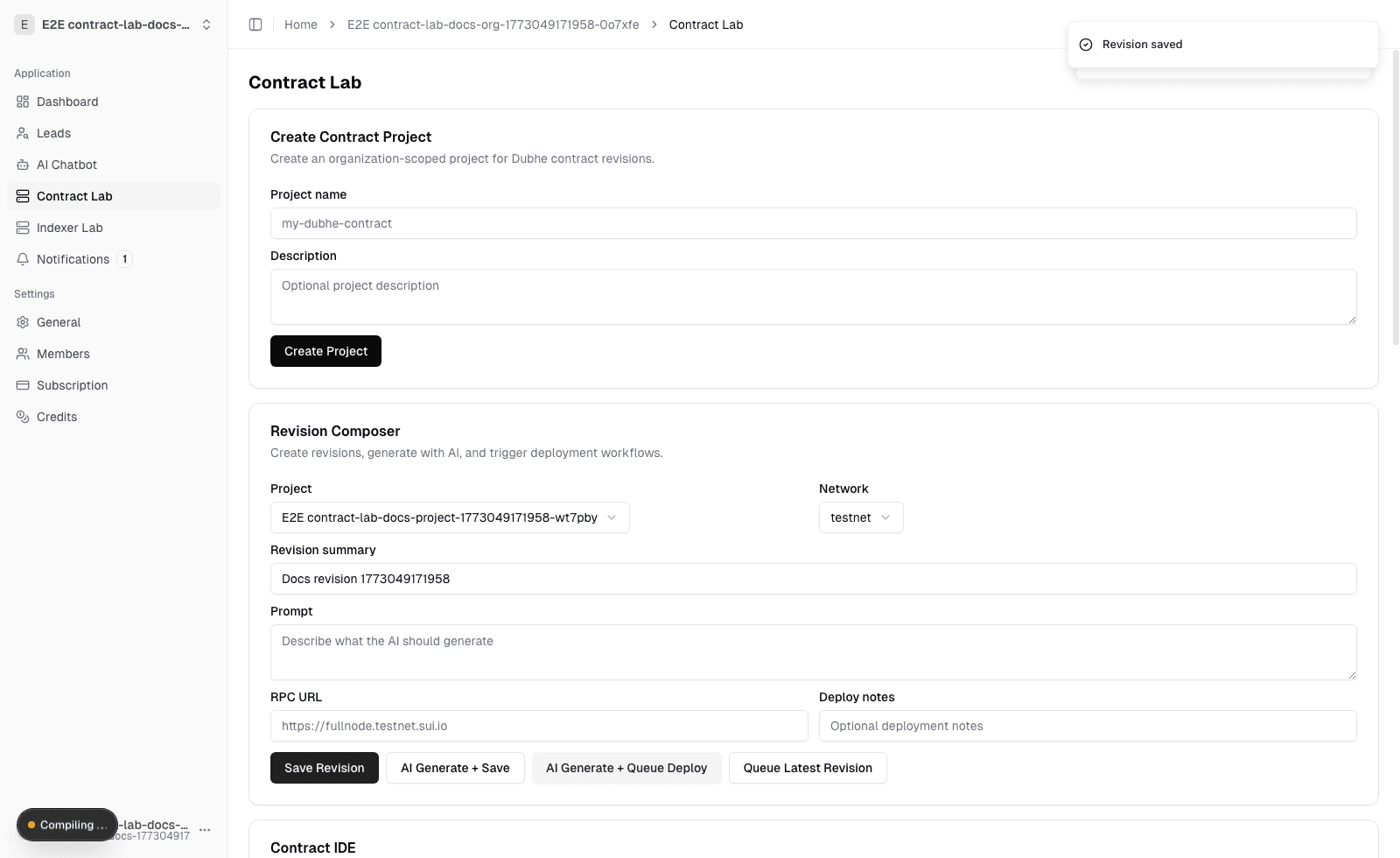
In Revision Composer:
- Confirm
Project - Set
Revision summary - Optionally set
Prompt,RPC URL, andDeploy notes - Click
Save Revision
Saved revisions appear in the History tab below.
4. Edit Draft Files in Contract IDE
In Contract IDE:
- Select files from the left file list
- Edit content in Monaco editor (syntax highlight, line numbers, shortcuts)
- Add a file with
sources/new_contract.move+Add - Delete files with
Del(exceptMove.toml) - Use
Raw Files JSONfor direct JSON-level editing
5. Compare Revisions in Diff
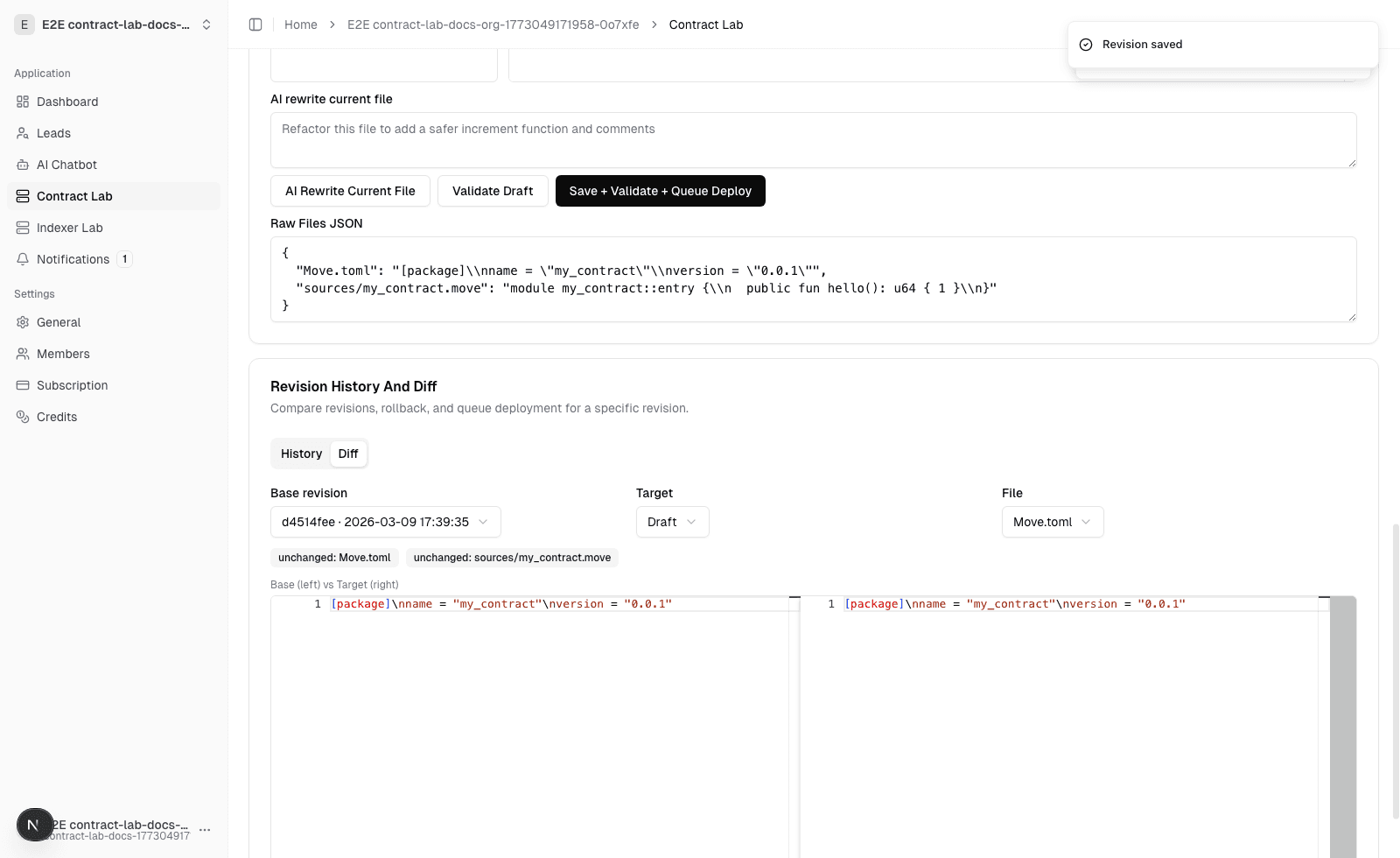
Go to Revision History And Diff -> Diff:
- Choose
Base revision - Choose
Target(another revision orDraft) - Choose
File - Review side-by-side diff (left = base, right = target)
Status badges show each file change: added, deleted, modified, unchanged.
6. Use History Actions
In History, each revision supports:
Load To Draft: load snapshot into current draft editorSet As Diff Base/Set As Diff Target: quick diff setupQueue Deploy This Revision: queue this specific revisionRollback To This Revision: create a new latest revision from this snapshot
7. AI Actions
Available AI operations:
AI Generate + Save: generate full revision fromPromptAI Generate + Queue Deploy: generate and queue in one stepAI Rewrite Current File: rewrite only selected file based on instruction
AI output is validated against Dubhe Stack conventions before being accepted. If generated files do not match required Dubhe structure, the request is rejected.
Dubhe gate is enforced in five layers:
- Prompt contract: model is instructed to output Dubhe-compatible full JSON files only
- File safety: paths and file map are sanitized (
Move.tomlrequired, safe relative paths only) - Dubhe semantic rules:
Move.tomlmust include package name/edition/addresses andDubhe = { local = "...dubhe..." }- required files like
sources/codegen/genesis.move,sources/scripts/deploy_hook.move,sources/codegen/dapp_key.move genesis.movemust includedapp_system::create_dapp(...)and<package>::deploy_hook::run(...)- at least one
sources/systems/*.movemust usedubhe::dapp_service::DappHub
- Compile gate: server runs
CONTRACT_VALIDATE_COMMAND(if configured) - Queue gate: only validated drafts/revisions can enter deployment queue
When rejected, backend returns deterministic violation lines like:
[rule_code] <file-path>: <message>.
Recommended prompt style:
- Clearly state module name and target behavior
- Specify constraints (for example no breaking changes)
- Ask for deterministic outputs when needed
8. Validate and Deploy
Deployment-related actions in IDE:
Validate Draft: runs server-side validation commandSave + Validate + Queue Deploy: one-click pipeline for save -> validate -> queueQueue Latest Revision: queue latest saved revision from composer
Validation logs appear in Validation Output.
Deployment results appear in Deployments with status:
queued, running, succeeded, failed, canceled.
The deployments list auto-refreshes periodically and shows:
Package(on-chain package id)Digest(transaction digest)
9. Development-Only Worker
In non-production environments, Run Worker lets you process queued deployments manually.
- Set
Max tasks per batch - Click
Run Worker Batch - Inspect returned worker output
Alternative (recommended for continuous local testing): run worker as a container.
cd /Users/henryliu/obelisk/website
npm run contract:worker:docker:up:local
npm run contract:worker:docker:logs
Stop it with:
npm run contract:worker:docker:down10. Common Troubleshooting
Draft editor disabled
Files JSON is invalid means Raw Files JSON is malformed. Fix it to re-enable IDE editing.
Cannot queue deployment
Check:
- Organization role is
owneroradmin - Subscription plan allows deployment features
- Queue capacity is not exceeded
Validation fails
Review Validation Output logs first, then fix draft files and run Validate Draft again.
11. Fast AI E2E Test (Recommended)
Use this checklist to verify the complete AI -> deploy path:
- Start app:
npm run dev
- Start worker (choose one):
- In UI:
Run Worker Batch(development only), or - Docker worker:
npm run contract:worker:docker:up:local
- In UI:
- Open
/dashboard/organization/contract-lab - Create a project (initial Dubhe template revision is created automatically)
- In
Revision Composer, enter a prompt like:Add a new entry function to counter::counter_system that decrements value by u32 with underflow guard
- Click
AI Generate + Queue Deploy(network:testnet) - Watch
Deploymentsmove fromqueuedtosucceeded - Copy
PackageandDigestfor chain verification
Channel Lab: Managed Dubhe Channel Deployments
How Channel Lab fits into the managed runtime toolchain, what you can configure, and how lifecycle actions behave
Admin Console: Users, Organizations, Notifications, App Config
The current platform admin workspace and how each page is used in daily operations